

Versions
Creating a Version
Step-by-step instructions for creating a new version to start a release.
A version represents a single release of your mobile app (e.g., v1.2.6). Each version moves through the 5-stage pipeline from build selection to production release.
Before You Begin
- Your rollout must be created (see Create Rollout)
- At least one Bitrise connected app must be linked to your rollout
- Recommended: Complete the Setup Checklist items (especially Bitrise integration and approver mappings)
Create a Version
-
Navigate to your rollout's Versions page
Go to your rollout, then click Versions in the navigation (or navigate directly to the versions list page).
The Versions list page with the Create Version button -
Click Create Version
Click the “Create Version” button in the top-right corner.
-
Select a Bitrise Connected App
Choose the Bitrise app to create this version for. Options are shown as “Name (Platform) - Bundle ID/Package Name” (e.g.,
MyApp (iOS) - com.uhg.myapp).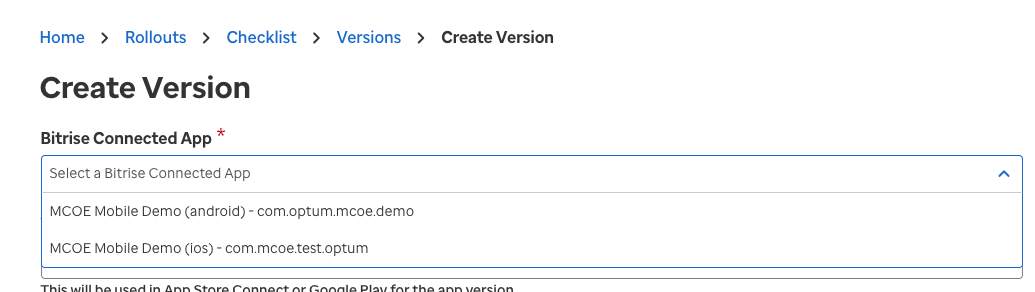
The Create Version form with required and optional fields
-
Enter the version number
Enter the version string for this release (e.g.,
1.2.6). This will be used in App Store Connect or Google Play for the app version.Use semantic versioning (e.g.,1.2.6,2.0.0). The version number must be unique per connected app — you can’t create two versions with the same number for the same app. -
Set the hotfix flag
Select Yes or No for Is Hotfix? (defaults to No). Marking a version as a hotfix automatically approves the Legal approval for faster release. See Hotfix Versions below.
-
Fill in optional fields (recommended)
Field Description What’s New Release notes visible to end users in the app store Release Description Internal description for your team — not shown to app store users Target Release Date When you aim to release this version (does not auto-schedule) Version Application Name Pre-populated from your store settings; override if this version uses a different name -
Confirm creation
Click “Create Version”. A success screen confirms the version was created, and you’re redirected to the Version Details page showing the pipeline stages.
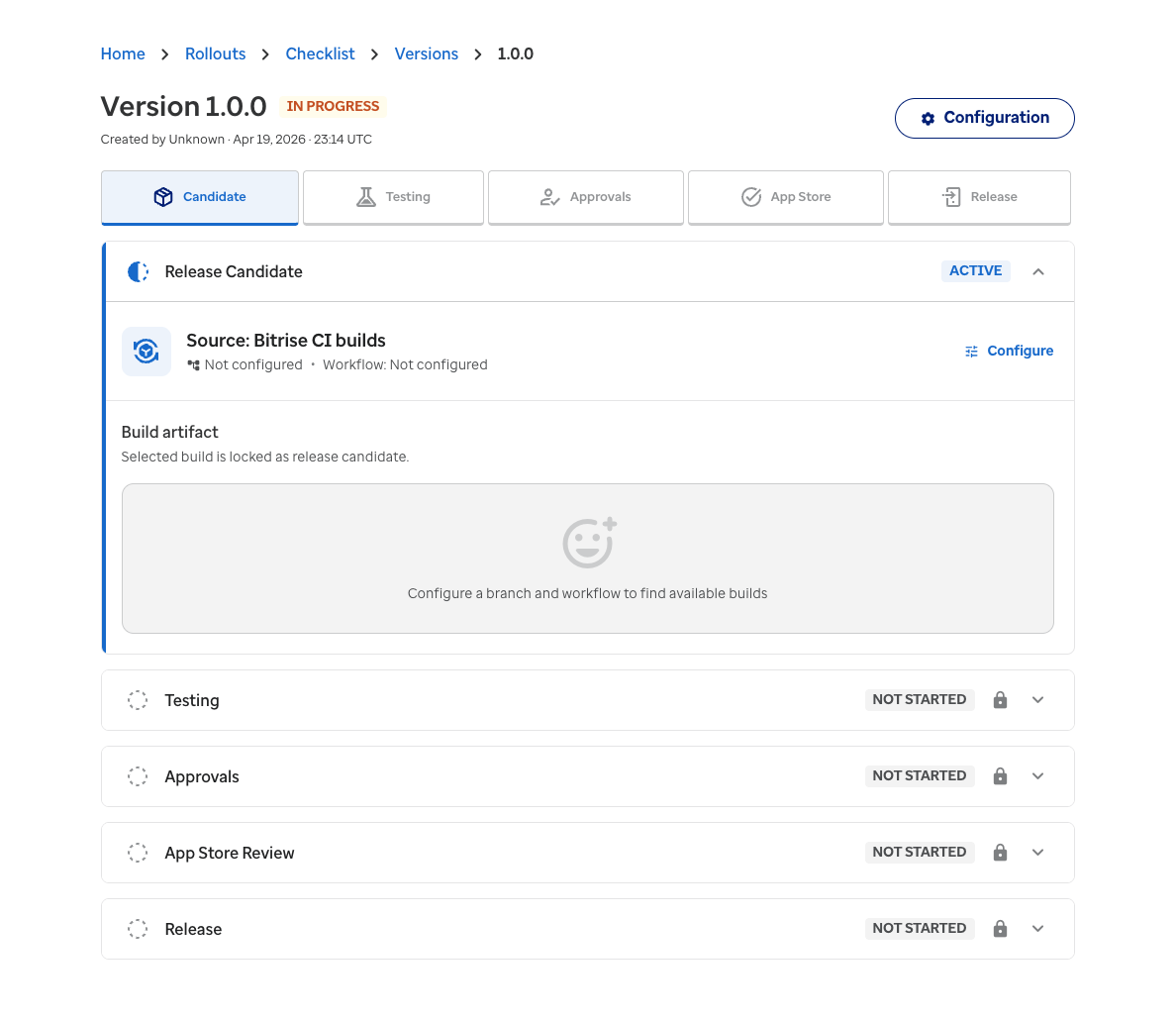
The Version Details page after creating a new version
What Happens Behind the Scenes
When you create a version, the system:
- Creates a version record for your rollout
- Sets up a corresponding release in Bitrise Release Management
- Creates all six approval records based on your rollout’s approver mappings:
- OSPO, Legal, ESRO (compliance — order 0)
- Service Owner, Technical Owner, Product Owner (business — order 1)
- If the version is marked as a hotfix, the Legal approval is automatically approved
The version starts in the Release Candidate stage, ready for you to select a build artifact.
Hotfix Versions
Marking a version as a hotfix enables a faster approval path:
- Legal approval is automatically approved — no manual review needed
- All other approvals still require their normal sign-off
- The hotfix flag is set at creation time and displayed on the version throughout the pipeline
Use hotfix mode when you need to push a critical fix quickly and Legal has pre-approved the release pattern.
What’s Next
After creating your version, you’ll land on the Version Details page showing the 5-stage pipeline. Start with the first stage:
- Release Candidate — Configure your build source and select an artifact
- Pipeline Overview — Understand the full release lifecycle
- Manage Versions — Edit or delete versions