

Manage Rollout
Configuring Rollout Settings
Managing rollout settings, app store configuration, and Google Play setup.
Rollout settings control your rollout’s identity, repository connections, and platform-specific app store configurations. There are two settings pages: Rollout Settings (name and repository) and Global Settings (application info and app store configuration).
Rollout Settings Page
Navigate to your rollout and click “Settings” from the checklist page, or go to:
/beta/rollouts/{askId}/{rolloutName}/settingsRename Your Rollout
-
Update the rollout name
In the “Edit Rollout Name” section, update the rollout name field. The preview shows what the final name will be (lowercase, hyphens replace special characters).
Editing the rollout name -
Verify no conflicts
The system checks that the new name doesn’t conflict with another rollout under the same ASK ID.
-
Save or discard
Click Save in the top-right corner to confirm, or Discard to cancel.
Repository Configuration
This section shows the repository connected to your rollout. You can add or update the repository connection from here.
Delete a Rollout
At the bottom of the settings page, the Danger Zone section includes a delete option.
-
Click Delete Rollout
Click the “Delete Rollout” button (red) in the Danger Zone.
-
Confirm deletion
A confirmation dialog appears. Type the rollout name exactly to confirm.
Confirming the deletion of a rollout -
Delete
Click Confirm to permanently delete the rollout and all associated data (versions, approvals, etc.).
Global Settings Page
The Global Settings page has three tabs for configuring platform-specific details. Navigate to it from the checklist or directly at:
/beta/rollouts/{askId}/{rolloutName}/global-settingsTab 1: Global
This tab shows your application’s information and organization details. Most fields on this tab are read-only because they are managed by the Immerse application registry.
Application Information (Read-Only)
| Field | Description |
|---|---|
| ASK ID | Your application’s identifier |
| App Name | Short application name |
| Application Name | Full application name |
| Application Description | Description of the application |
| Lifecycle Stage | Current lifecycle stage (e.g., Production) |
| Category | Application category |
| Software Type | Type of software |
Ownership & Organization (Read-Only)
| Field | Description |
|---|---|
| Service Owner | Name of the service owner |
| Technical Owner | Name of the technical owner |
| Product Owner | Name of the product owner |
| Department ID | Department identifier |
| Department Name | Department name |
| Business Unit | Business unit identifier |
| Operating Unit | Operating unit identifier |
| Billing Segment | Billing business segment |
| Enclave Environment | Environment classification |
| Acquired Entity | Acquired entity name (if applicable) |
Editable Global Fields
| Field | Required for Checklist | Description |
|---|---|---|
| Support URL | Yes | Link to your app’s support page |
| Marketing URL | Yes | Link to your app’s marketing page |
| Privacy Policy URL | Yes | Link to your app’s privacy policy |
| Copyright | Yes | Copyright notice (e.g., “2026 UnitedHealth Group”) |
Fill in these fields and click Save to complete the Global Settings checklist item.
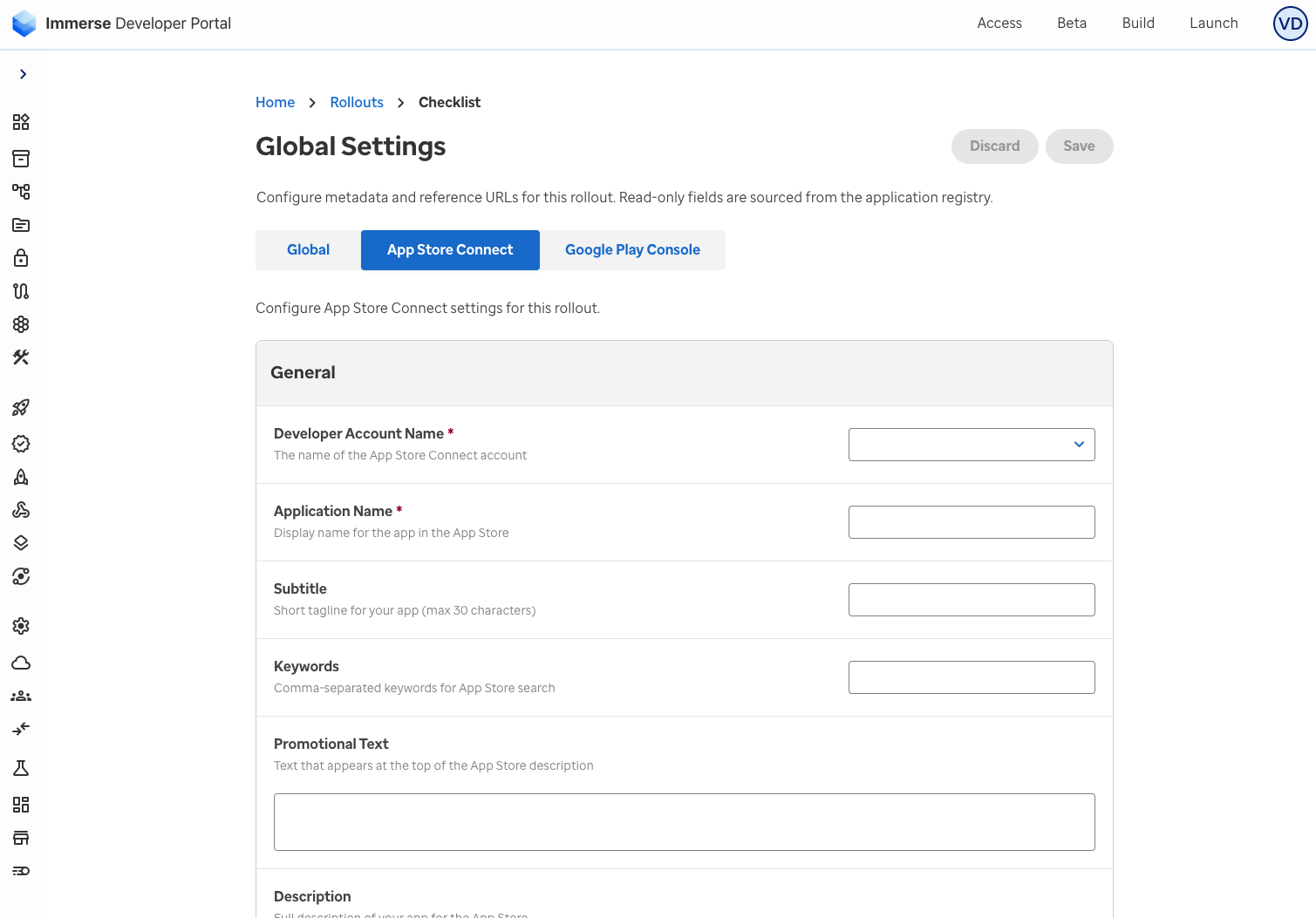
Tab 2: App Store Connect
Configure your Apple App Store Connect settings here. These are used when submitting iOS versions to the App Store.
| Field | Required | Description |
|---|---|---|
| Application Name | Yes | The name displayed on the App Store |
| Bundle ID | Yes | Your iOS app’s bundle identifier (e.g., com.uhg.myapp) |
| SKU | No | Stock Keeping Unit for App Store Connect |
| Team ID | No | Your Apple Developer Team ID |
| Apple ID | No | App Store Connect Apple ID |
| Provider ID | No | Provider identifier for your Apple developer account |
Tab 3: Google Play Console
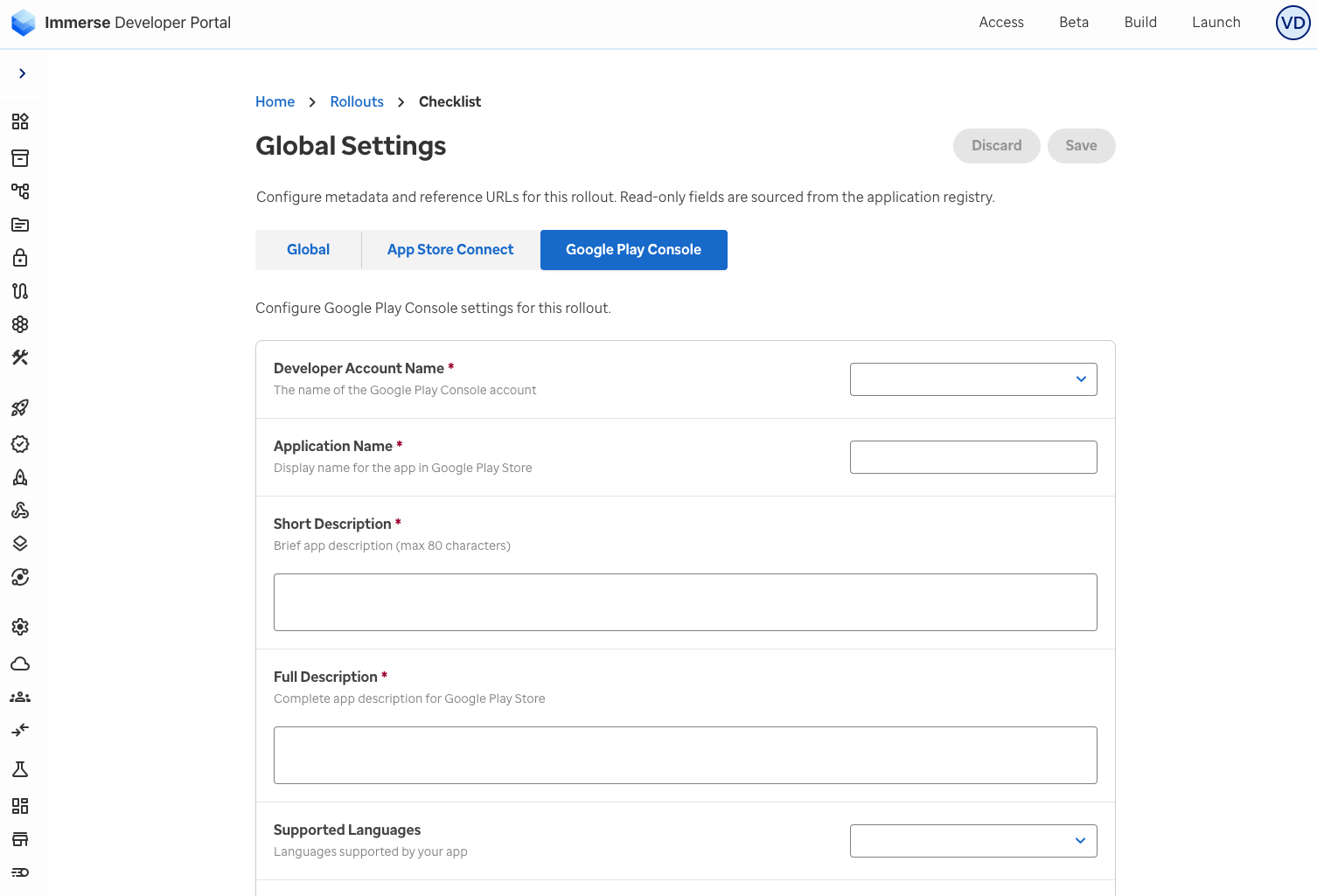
Configure your Google Play Console settings here. These are used when managing Android releases.
| Field | Required | Description |
|---|---|---|
| Application Name | Yes | The name displayed on Google Play |
| Package Name | Yes | Your Android app’s package name (e.g., com.uhg.myapp) |
| Service Account Email | No | Google service account for API access |
Saving and Discarding Changes
Both settings pages track changes independently:
- Save (top-right) — Saves all modified fields across tabs
- Discard (top-right) — Reverts all unsaved changes back to the last saved state
- Both buttons are disabled when no changes have been made
What’s Next
- Setup Checklist — See which settings are required for checklist completion
- Create Version — Once configured, create your first version
- App Store Review — How App Store Connect settings are used during review