

Release Management
Version Pipeline Overview
The 5-stage release pipeline explained, including stage progression, statuses, and lifecycle.
Every version in the Rollouts module moves through a 5-stage pipeline. Each stage must be completed before the next one can begin. This guide explains the full pipeline lifecycle, how stages progress, and what each status means.
The Five Stages
| Stage | What Happens | Key Action |
|---|---|---|
| Select the build artifact from Bitrise CI | Choose branch, workflow, and artifact | |
| Upload the build to TestFlight for beta testing | Upload and manage beta testing | |
| Route through 6 required approval workflows | Submit forms and track sign-offs | |
| Submit to Apple for App Store review | Submit for review and monitor status | |
| Release the approved version to production | Release to the App Store |
Accessing the Pipeline
The pipeline view is the Version Details page, located at:
/beta/rollouts/{askId}/{rolloutName}/versions/{versionId}/stagesNavigate here by clicking a version from the version list, or you’ll be automatically redirected here after creating a new version.
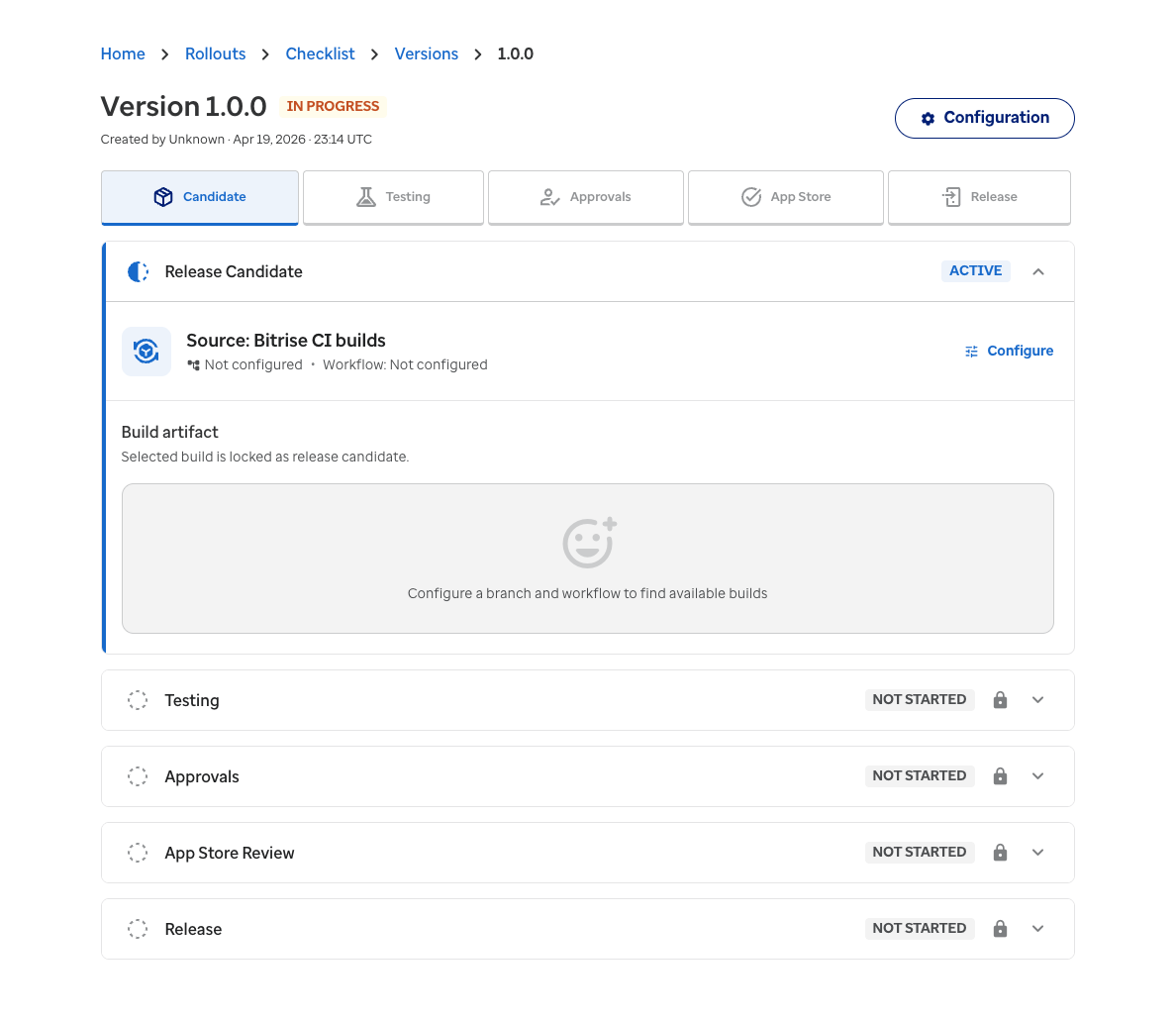
The Version Details page showing the 5-stage pipeline view
Pipeline View Layout
Header
- Title: “Version X.Y.Z” with a status badge
- Metadata: Created by, date/time, branch name
- Configuration button (top-right) — opens version settings for editing metadata
Pipeline Summary Bar
A horizontal bar at the top shows all five stages. The active stage is highlighted, and completed stages show a checkmark. Click any stage to scroll to its section.
Stage Cards
Each stage is shown as a collapsible card. Cards display:
- Stage name and status
- Stage-specific content (varies by stage)
- Action buttons for the current step
Stage Progression
Stages progress in order. A stage becomes active when the previous stage is complete:
| Current Stage | Becomes Active When |
|---|---|
| Release Candidate | Version is created |
| Testing | A build artifact is selected |
| Approvals | Build is uploaded to TestFlight |
| App Store Review | All required approvals are approved |
| Release | Apple approves the App Store review |
Version Statuses
The overall version status appears as a badge next to the version title:
| Status | Meaning |
|---|---|
| Draft | Version just created, in Release Candidate stage |
| In Progress | Version is actively moving through the pipeline |
| Completed | Version has been released to production |
| Rejected | Version was rejected during approvals or App Store review |
Stage-Level Statuses
Each stage card also shows its own status:
| Status | Color | Meaning |
|---|---|---|
| Complete | Green | Stage finished successfully |
| In Progress | Blue | Stage is currently active |
| Needs Attention | Yellow/Orange | Stage requires user action |
| Not Started | Gray | Stage hasn’t been reached yet |
Platform Differences
Pipeline Lifecycle Example
Here’s a typical version flowing through the pipeline:
-
Create version
Version starts at Release Candidate (status: Draft).
-
Configure build source
Select branch and workflow from Bitrise.
-
Select artifact
Choose a specific build from available artifacts.
-
Upload to TestFlight
Build is uploaded for beta testing.
-
OSPO scan runs
Automated license compliance check executes in the background.
-
Submit Legal and ESRO forms
Fill out and send compliance forms to reviewers.
-
Compliance approvals approved
Business approvals become available after all compliance sign-offs.
-
Business owners approve
Service Owner, Technical Owner, and Product Owner sign off.
-
Submit for App Store review
Apple reviews the build (typically 24-48 hours).
-
Apple approves
Ready for release.
-
Release
App is live on the App Store.